Table of Contents
2.3. Connect and configure a device
Connect an IO-Link® device
IO-Link devices are connected with an standard M12 connector to the Pinebox. In our example we will use a distance sensor. Anyhow, the configuration principle is the same for all device types and all available ports on the Pinebox.

If your device does not have a M12 connector, you will need an adaptor or open-connections cable.
Configure an IO-Link device
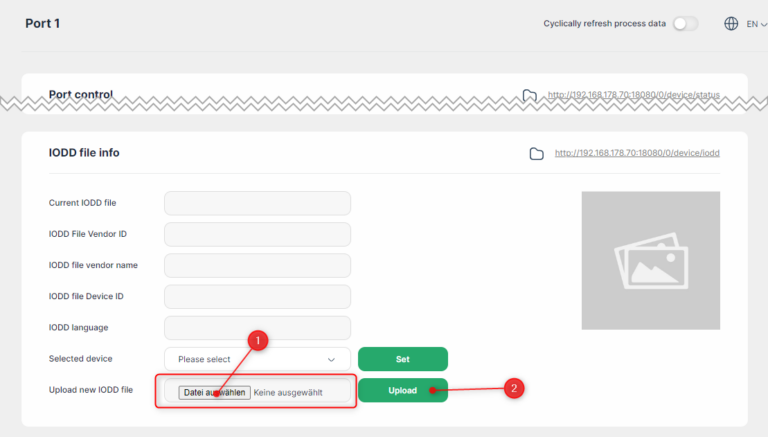
First, the IODD needs to be loaded. Download the file from your device manufacturer and upload it over the web interface (Step 1: Select file, step 2: upload). The Pinebox accepts zip-Files and plain .iodd files (in xml-Format):
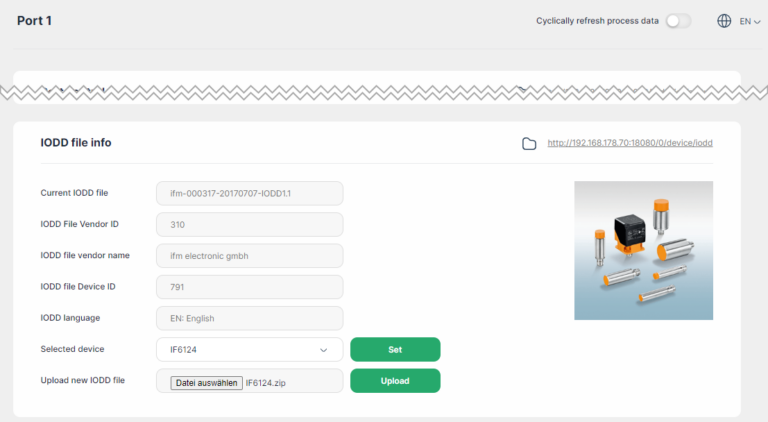
Now you see the device information in the info section:
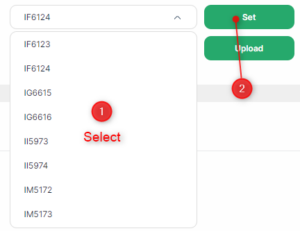
If the device is applicable to more than one device type, you can select the connected device via the dropdown menu. The selection however does not have a functional impact, it just changes the image of the device:
Device data
The device data is seperated in the following sections:
- Process data: This is data that is cyclically exchanged, like distance values for a distance sensor
- Parameters: This is data that is used to check and configure the device, e.g., with serial number, or threshold values
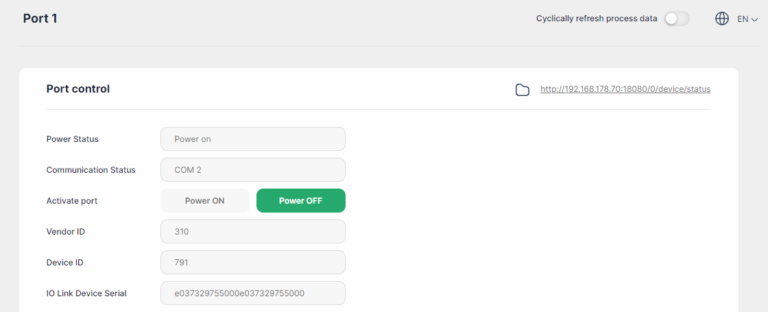
Enable power
To communicate with the device, you need to apply port power by clicking the “Power ON” button. Please note that this activity will take a short time to be completed.
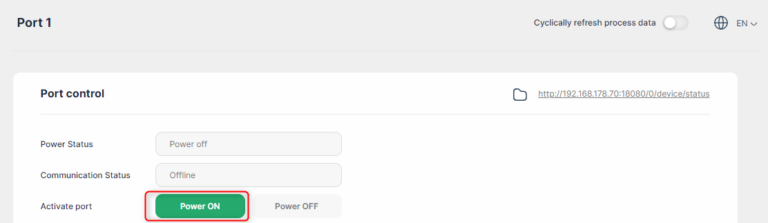
When power is emabled, the information of the connected device is visible:
Test the device
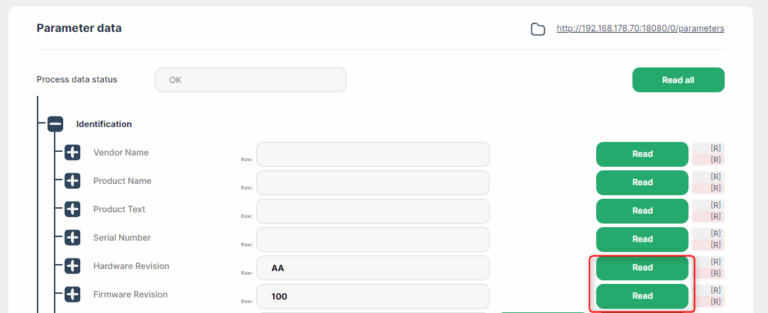
After enabling power, you can test the device by reading and writing information in the parameter section, e.g. the hardware and firmware revision:
You can also exchange process data (the data might not be complete on the first click):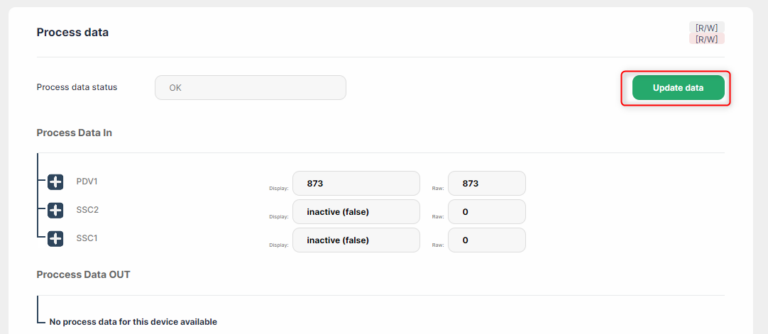
If the device has process data OUT (data from the Pinebox to the device), the values can be set in the corresponding section. You can also auto-update the process data cyclically with the switch on the top of the page.

Congratulations! You just finished configuring the first device on the Pinebox!