Table of Contents
4.1 Device configuration and update
This section covers the “Device” page of the web interface. The web interface can be reached:
- with the IP-Address
- with the devicename in the format pinebox-XXXXX. For this, the name must be known to the network’s name server, which is usually the case if the IP was assigned by DHCP
Please note that the Pinebox only supports http (not https) connections.
Status
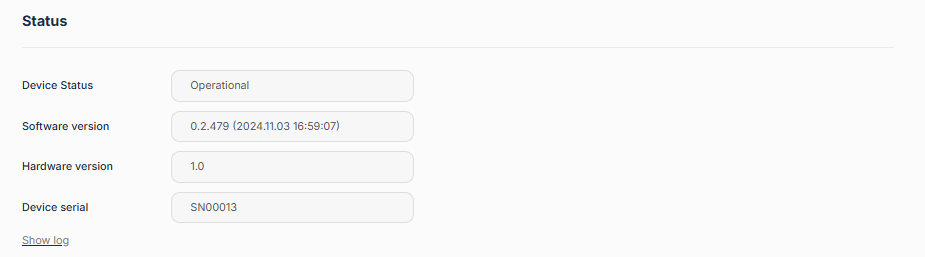 |
This section holds the following information:
- Device status: Operational or error state
- Software version: The installed device software, can be updated (see “Update” section)
- Hardware version: The hardware version of the Pinebox
- Device serial: Serial number of the Pinebox.
- Log: “Show log” will open another tab with log information. In case of issues with the Pinebox, the Pinetek Networks support may ask to provide information from this output
Network settings
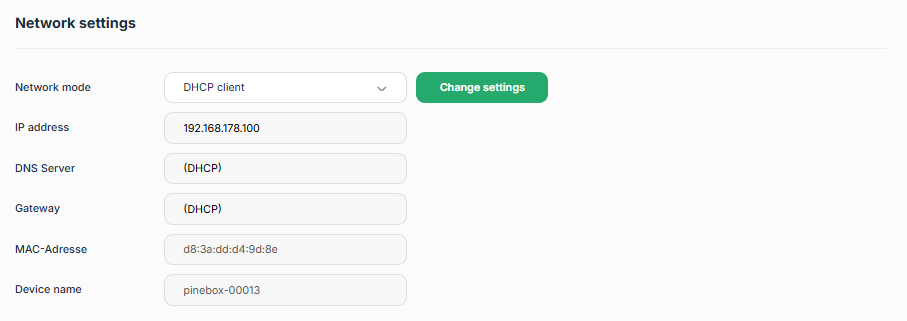 |
The network setings allow you to set the Ethernet IP-Address. There are two options:
- Network mode “DHCP client”
This is the default setting (factory default). In the network, a DHCP server needs to be present to assign an IP address. The address can then be looked up in the DHCP server’s client list. Typically, the DHCP server also acts as DNS, so the web interface also can be accessed with the device name.
In DHCP client mode, the fields for IP address, DNS server and gateway are read-only as the data is assigend from the server.
Fallback mode for DHCP: if no DHCP server can be detected by the Pinebox, the IP address falls back to the static fallback IP that is marked on the Pinebox’s label on the backside of the device. As the DHCP mode is factory default, the static fallback IP can be set with the reset button. - Network mode “Manual IP address”
In this setting, the IPs for the device (“IP address”) and the network’s DNS Server and gateway need to be set manually.
If settings are change, these are applied with the “Change settings” button.
If IP settings are changed and are not matching with the actual network, this can lead to a situation, where IP traffic can be disturbed in the network or the device is left unreachable. In these cases, a factory reset of the network over the hardware reset button (see 3.1 Power and Network Connections, Reset Button) might be necessary to re-establish communications.
WiFi
Requires min SW 1.4.x
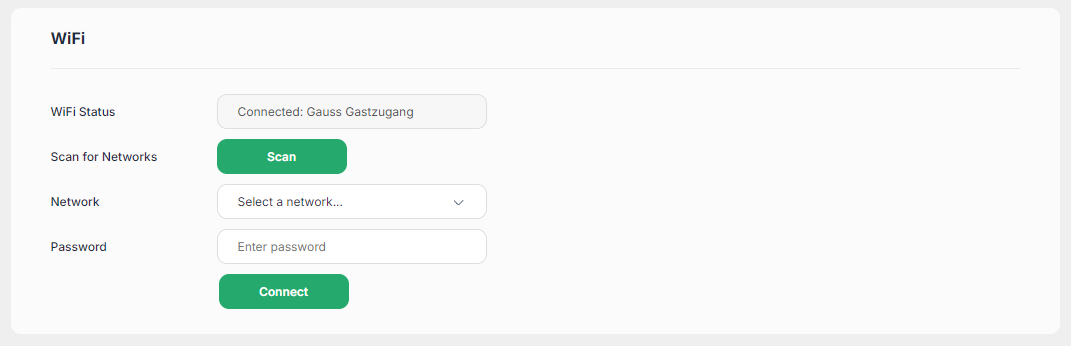 |
The Pinebox supports WiFi connectivity via a USB-to-WiFi adapter. Compatibility has been verified with:
- Netgear AC600
- Netgear AC1200 (Realtek RTL8192CU chipset).
Other adapters with native ARM Linux driver support should work as well. If an adapter is available, the WiFi Status will show “No network selected”. Press the “Scan” button to scan for available WiFi networks. Once scan is completed, select the Network from the drop-down list, enter the password and press “Connect”. The network-connection is persistent, i.e. the Pinebox will connect automatically to the configured network when it is in reach.
For futher compatibilty, please contact us at support.pinetek-networks.com
Node-RED
 |
This section controls the Node-RED service. Node-RED can be manually started and stopped (“Start Node-RED” / “Stop Node-RED”). Please not that starting will take some time to complete. If Node-RED is stopped, the Node-RED Flows and Dashboard cannot be accessed, and the configured flows are not executed.
BY default, Node-RED is configured to start as a service on device start. You can disable this be removing the service. In case you want to execute the Node-RED flows, Node-RED requires a manual start (over the web interface or via JSON interface).
Device update
 |
Clicking the link will lead to the device update page (under a different port than the rest of the web interface):
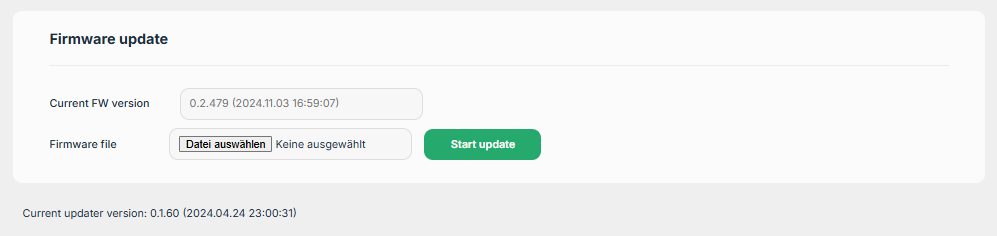 |
The latest firmware is provided here: download.pinetek-networks.com/pinebox/firmware/. The downloaded file needs to be un-zipped, the device update expects a file with .pfw (Pinebox Firmware) file extension.
Store/restore config
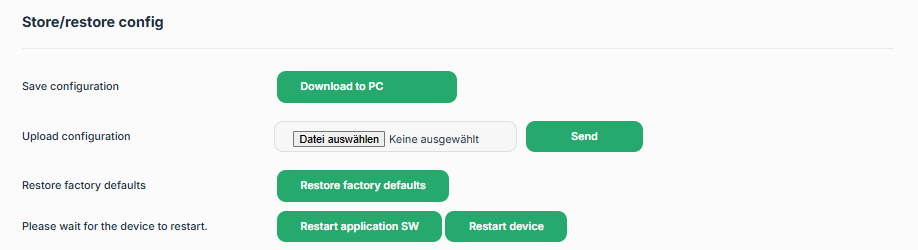 |
In this section, the user data can be stored and restored and the device and application can be re-started.
- Save/upload configuration: This saves and restores the user data (port configuration and IODDs, Node-RED configuration and nodes). The network configuration (see above) is not stored and restored.
- Restore factory defaults: This erases all user data (port configuration and IODDs, Node-RED configuration and nodes). The network configuration is also set to default (DHCP).
- Restart application SW: This restarts the application software of the Pinebox, the SDCI ports driver remains untouched by this. Can be used if an application error persists.
- Restart device: This does a hard restart of the complete Pinebox. Can be used if an error persists in the device at runtime.
Other settings
Requires min SW 1.4.x
 |
The Pinebox supports internet connectivity via an LTE surfstick. Functionality has been verified with
- ZTE MF79U
- ZTE MF833U1
Other USB sticks that expose a local Ethernet interface are supported as well. The IP address for this interface is typically documented in the stick's manual or printed on the device itself.
The stick's configuration page is accessible via the “LTE Stick Config Page” link, which routes traffic from the Pinebox's Ethernet interface to the stick's internal configuration page.
Some sticks and firmware versions can act as a local WiFi access point (AP). If the Pinebox interface needs to be accessed from a client connected to this AP, use the “Pinebox Interface via LTE Stick” link. Note that this link is only populated once the LTE surfstick is correctly configured, and access is limited to clients connected to the AP.
For futher compatibilty, please contact us at support.pinetek-networks.com